Check these items before uploading
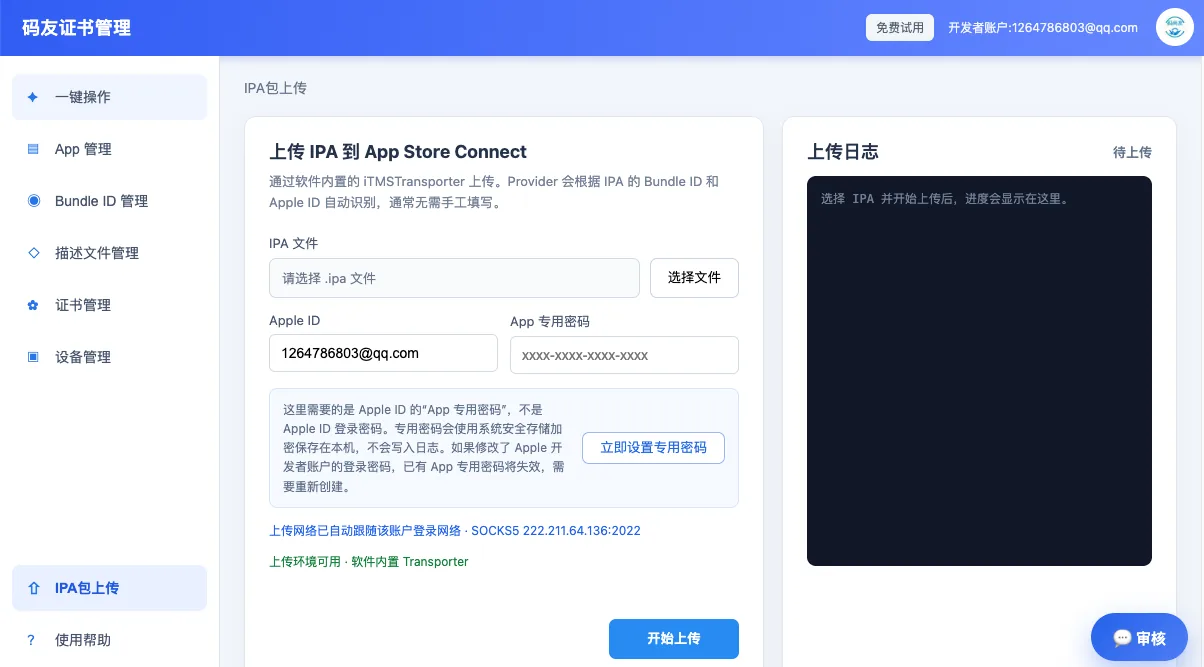
Confirm that the Bundle ID, version, build number, distribution certificate, provisioning profile and Apple Developer team all point to the same app. Many upload errors come from a mismatch between the signed package and the App Store Connect record.
- Use the exact Bundle ID from the App Store Connect app record.
- Increase the build number when that version has already been uploaded.
- Keep the certificate, P12 file and profile in the same developer team.
- Use an app-specific password when uploading with an Apple ID.
Troubleshoot a failed or stuck upload
Start at the first error in the upload log. Validation errors usually point to signing, Bundle ID, version or entitlement issues. Transfer errors usually point to network routing, Apple service connectivity or account authentication.
After identifying the cause, fix the source asset and upload a new build instead of repeatedly submitting the same package.