Masyou publishing tutorials
iOS App Publishing Tutorials
From certificates to IPA uploads
Follow the real publishing order: prepare certificates and provisioning profiles, build an IPA, upload it to App Store Connect and complete the review materials.
Find a tutorial by task
Start with the current blocker
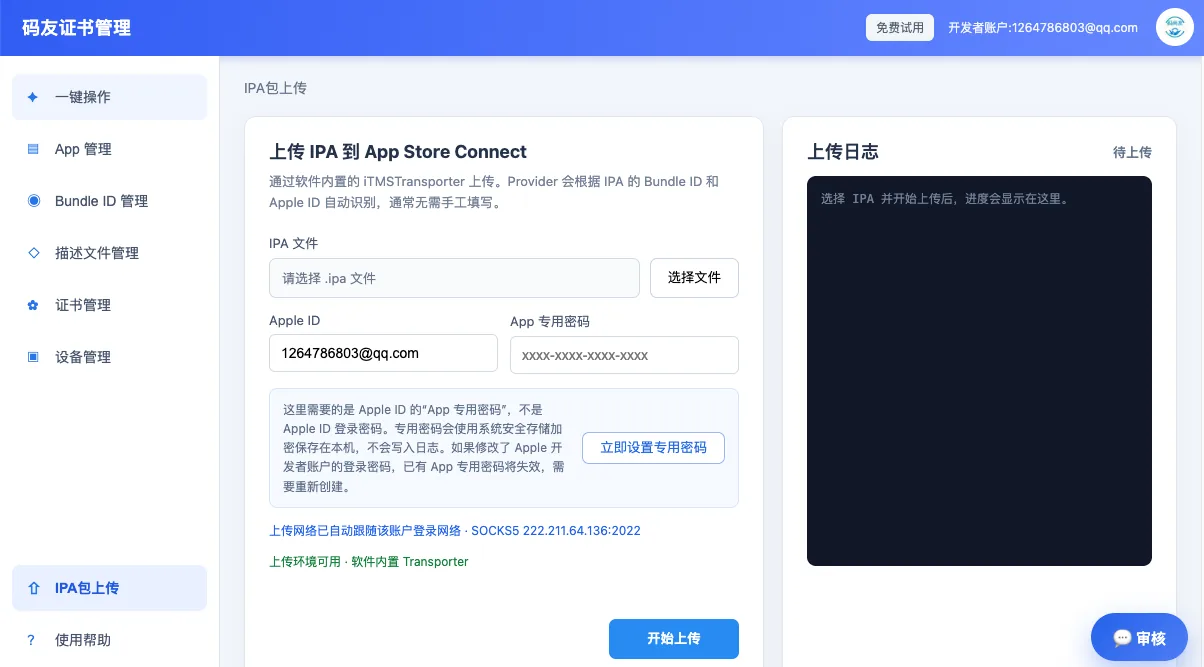
Upload an IPA to App Store Connect
Check the app record, version, build number and app-specific password when an upload is stuck or fails.
Read the upload guide →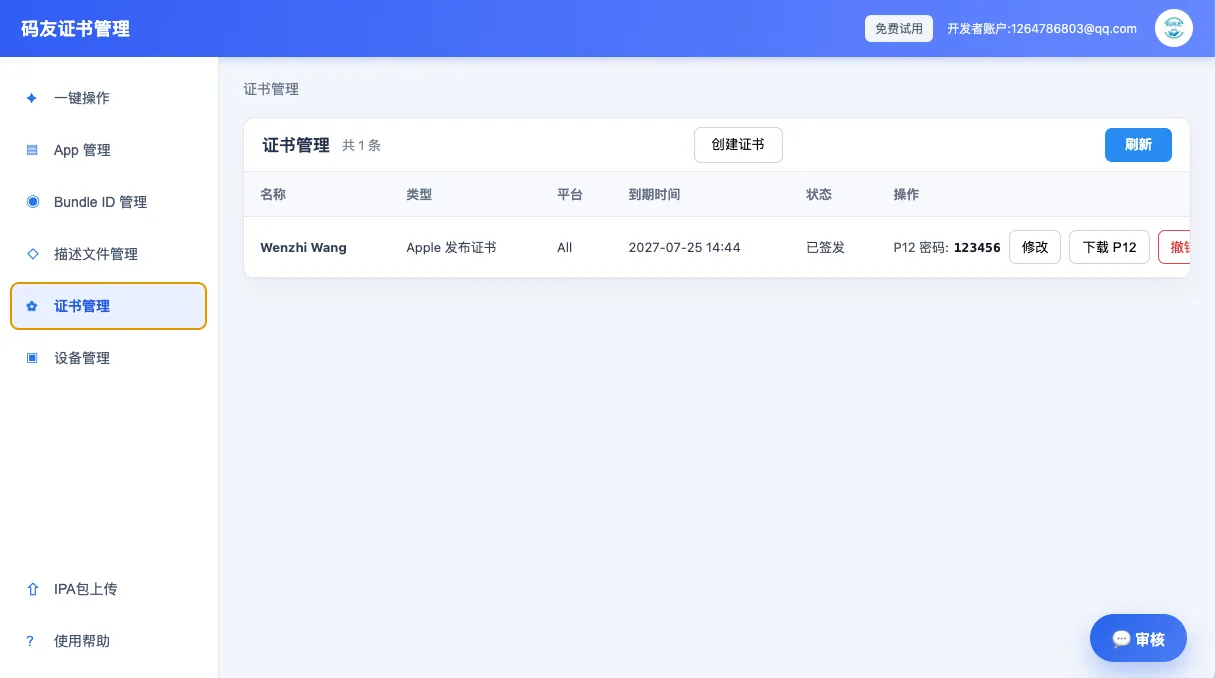
Match distribution certificates and profiles
Understand how the certificate, P12 file, Bundle ID and provisioning profile work together.
Read the certificate guide →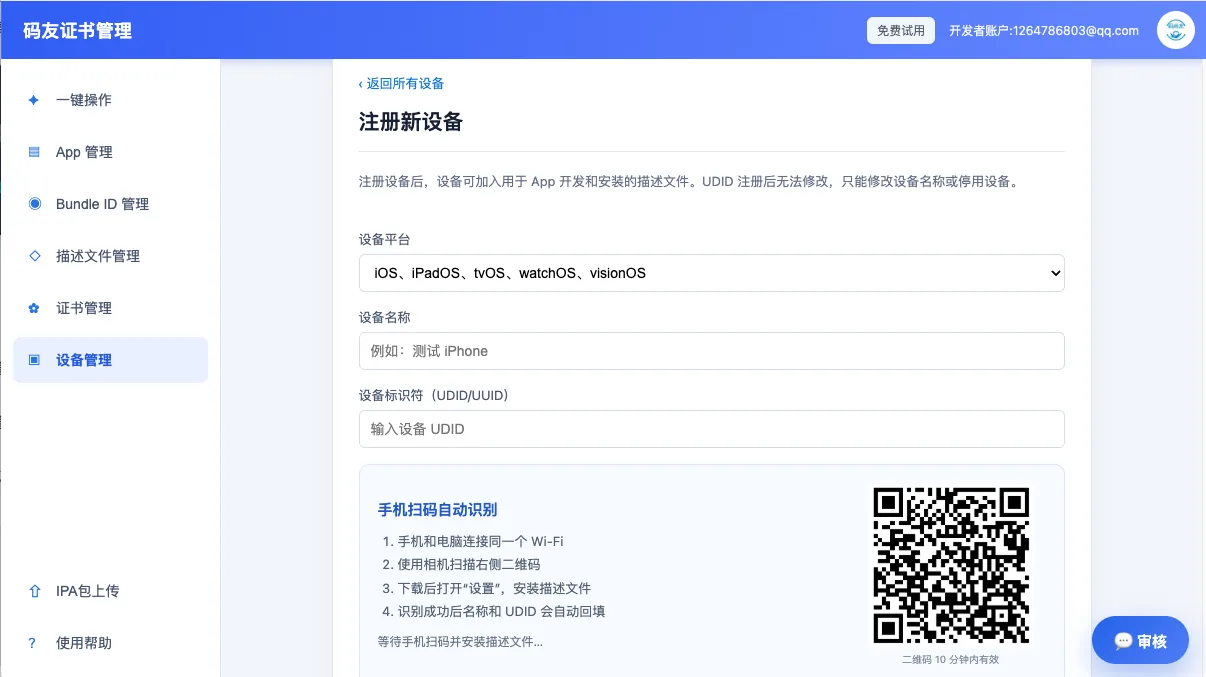
Register UDID test devices
Confirm device UDIDs, names, platforms and the device list before Ad Hoc testing.
Read the testing guide →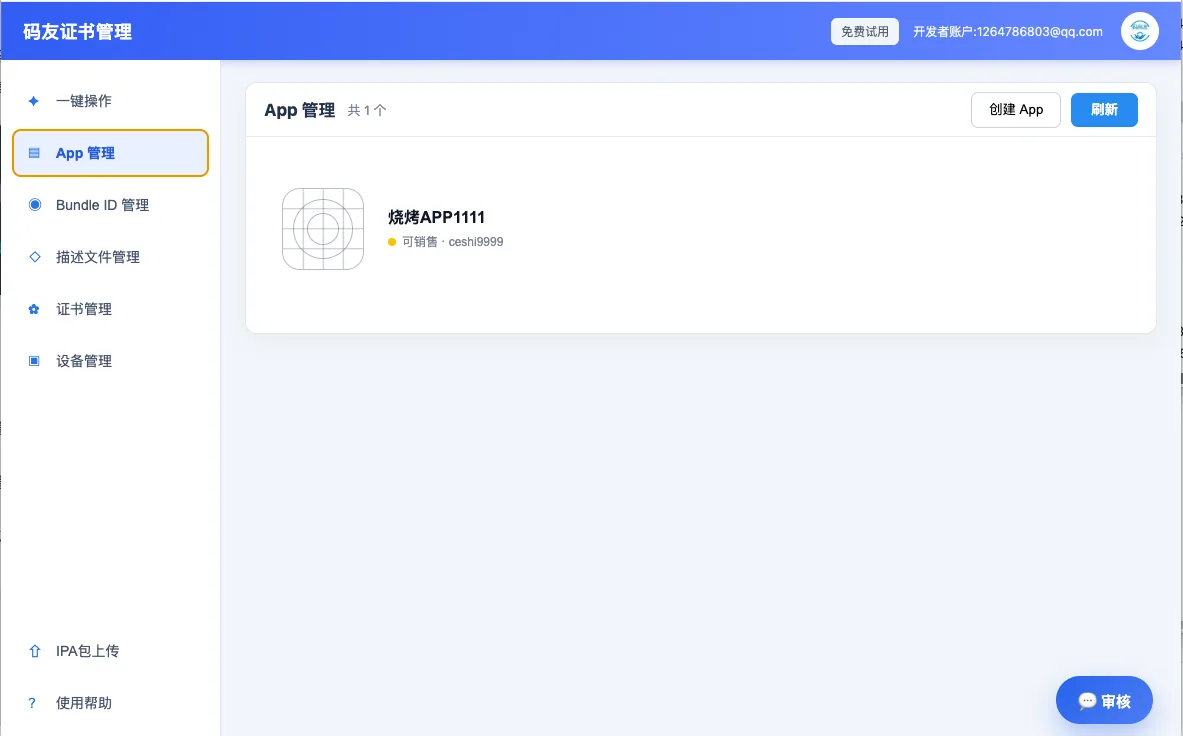
Prepare for App Store review
Check privacy details, screenshots, test credentials, version information and review notes.
Read the review checklist →The complete publishing path
Break one submission into five actions
- 01Account
Prepare the account and app basics
Confirm Apple Developer permissions, the App Store Connect app record, Bundle ID, app name and version plan.
- 02Signing
Create certificates and profiles
Prepare certificates, the P12 file, App ID and provisioning profile for the intended distribution purpose.
- 03Build
Build and inspect the IPA
Check version, build number, architecture, signing status and app permissions before uploading the package.
- 04Upload
Upload to App Store Connect
After uploading, check the account, network, Bundle ID, build number and signing logs when processing fails.
- 05Submit
Complete metadata and submit review
Finish privacy details, screenshots, description, age rating, review notes and test account access.
Prepare before you start
Keep these six items ready for your first release
You will use these details repeatedly during signing, building, uploading and review. Organizing them early makes troubleshooting much faster.
- ✓Apple Developer accountConfirm team and App Store Connect access
- ✓Bundle IDMatch the project, app record and profile
- ✓Distribution certificate and P12Keep the private key and check expiration
- ✓Provisioning profileChoose App Store or Ad Hoc correctly
- ✓Version and build numberDo not reuse an uploaded build number
- ✓Review materialsPrepare screenshots, privacy text and test access
Frequently asked questions
Details that are easy to miss
Can I upload an IPA without an Apple Developer account?
No. You need an authorized Apple Developer account, an App Store Connect app record, a matching Bundle ID and distribution signing materials before uploading.
How are a P12 file, provisioning profile and IPA related?
A P12 file commonly contains the signing certificate and private key. A provisioning profile binds the App ID, certificate and distribution purpose. The IPA is the built and signed application package, so these materials must match.
What should I check when an uploaded build stays processing?
Check whether the build number was already used, whether the version belongs to the current app and whether the IPA is correctly signed. Then review the App Store Connect status and upload logs.
Does this tutorial page require an API or login?
No. The directory and explanations are served as static HTML and do not require an API request or a login to read.
Continue your publishing task
Prepare the certificate and IPA, then publish with Masyou
Keep certificates, profiles, test devices and upload tasks organized in one clear publishing workflow.